 Sketch2Space
How to convert a hand-drawn floor plan to 3D
You don't have to redraw a plan in CAD to get a 3D model. Sketch2Space reads your sketch — hand-drawn, a brochure, or a CAD export — finds the walls and rooms, and builds the model for you. This guide walks through the whole process and how to get the most accurate result.
Why convert a sketch instead of redrawing it#
Redrawing a floor plan by hand in CAD is slow and error-prone. Sketch2Space's AI does the tracing automatically: it recognises rooms, walls, doors, windows, and stairs from the picture and turns them into a real 3D model you can edit and export. You keep the shape of your original plan, without the manual work.
Step by step#
- Open a new project in your Sketch2Space dashboard.
- Upload your sketch as a JPG, PNG, or PDF — or, on a paid plan, an AutoCAD DWG/DWFX file (we convert it automatically).
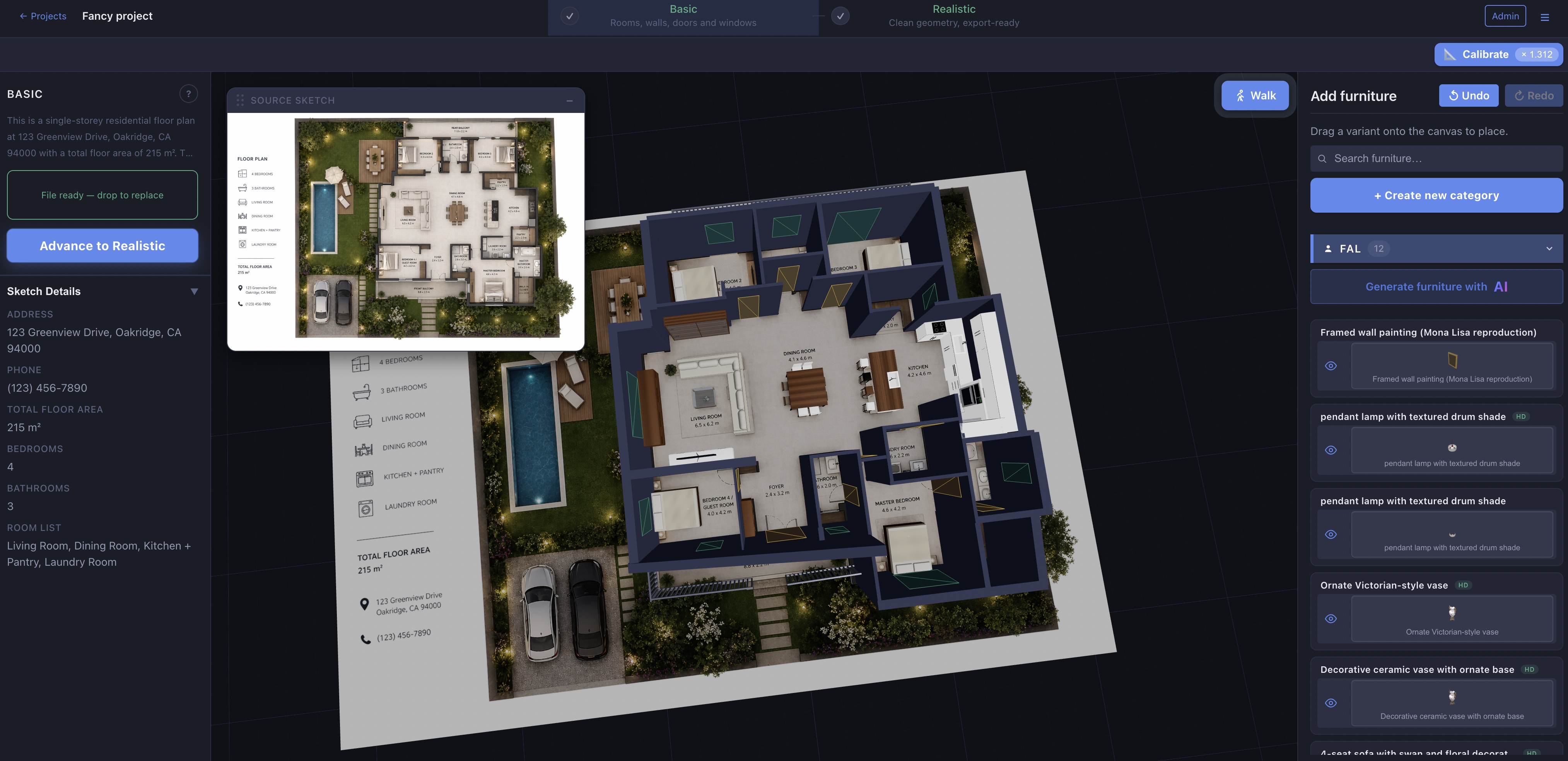
- Wait for detection. The AI extracts the structure — rooms, walls, and openings — then builds a 3D model.
- Check the outer shape. Make sure the outline of the building matches your sketch. This is the most important thing to get right.
- Review and adjust. Check the detected rooms, walls, doors, and windows, and adjust anything that doesn't match your sketch.
- Export to a
.daeCAD file for SketchUp, Blender, or other software.
Get the best results#
The model is only as good as what the AI can read in your image. A few simple things help a lot:
- Shoot straight on. Photograph or scan the plan flat, not at an angle.
- Keep walls readable. Strong, continuous wall lines detect better than faint or broken ones.
- Crop to the plan. Remove unrelated parts of the page when you can.
- Use a high-resolution file. More detail means better detection.
If the outer shape of the model doesn't match your sketch, fix that first before adjusting rooms. The outline drives everything else.
What the AI detects#
Sketch2Space's computer vision focuses on the parts that define a floor plan:
- Rooms and their boundaries
- Walls (the model is built from these)
- Doors and windows
- Stairs
- Beds — placed in the model as furniture, sized from the drawing, pillows against the wall (see automatic bed detection)
From these it builds the 3D structure. You can then edit anything that isn't quite right — move walls, resize doors and windows, and place furniture.
After conversion#
- Edit your model live — move walls, resize openings, and add furniture.
- Export your model to CAD as a
.daefile. - Not sure what a term means? Check the glossary.
- Still stuck? See the FAQ.
FAQ#
Can I convert a hand-drawn floor plan?#
Yes — hand-drawn sketches are a core use case. Upload a clear photo or scan and the AI converts it like any other plan.
Will the 3D model be accurate?#
The model is built from the wall lines in your sketch, so the shape follows your plan. Where exact measurements aren't marked, Sketch2Space estimates them from the drawing's proportions and tells you when it has done so.
Can I convert a multi-room layout?#
Yes. The AI detects multiple rooms and the walls between them and builds them all into one model.