 Sketch2Space
Create custom 3D furniture from a photo or a description
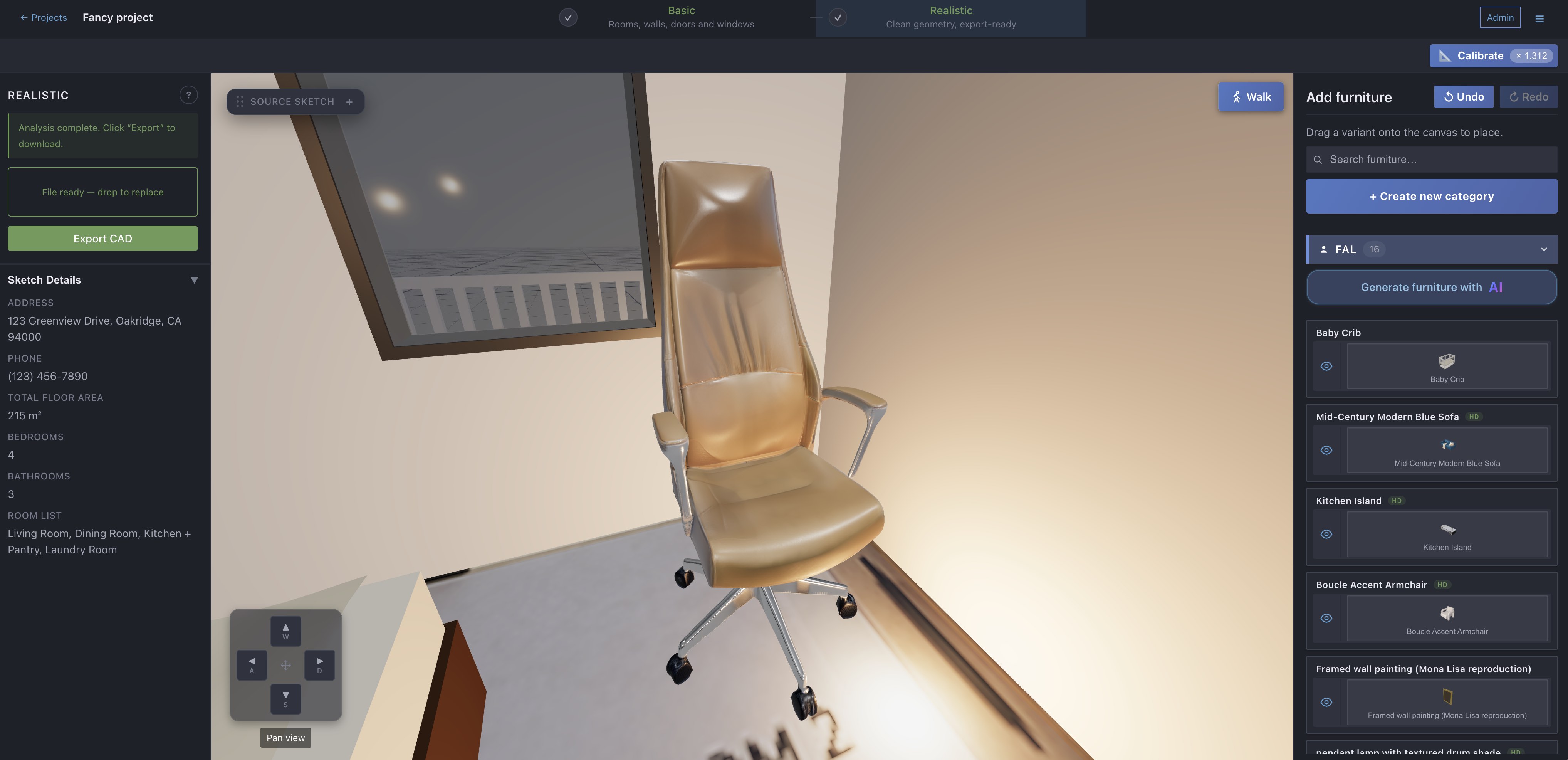
Sketch2Space comes with a library of ready-made furniture, but you can also make your own. Give it a photo of a real piece — or just describe it in a sentence — and it builds a detailed, realistic 3D model you can drop into your floor plan like any built-in piece.
Creating custom furniture is available on every account. Free accounts can make a couple of custom pieces to start.
What you can make#
- A 3D model of a real piece from a clear photo — a specific sofa, chair, table, lamp, or rug.
- A piece from a short description when you don't have a photo handy.
- Each model comes with realistic surfaces (wood, fabric, metal), so it looks right in the realistic view.
Create furniture from a photo#
A photo is the best way to match a real piece you have in mind.
- Open the Furniture panel.
- Click Generate furniture with AI.
- Keep Photo selected and drag in a photo, or click to browse for one.
- Drag a box over the one item you want, so the rest of the photo is ignored.
- Give it a name (optional) so it's easy to find later.
- Click Generate.
- The model builds in the background. When it's ready it appears in your library on its own — you don't have to wait on the screen.
Or describe it in words#
No photo? Switch the Build from control to Description and type a short, plain sentence — for example, "a round jute rug, about 1.5 m across" or "a walnut dining chair with black legs". Then click Generate. The clearer the description, the closer the result.
How long it takes#
A detailed model takes a few minutes to build, so it runs in the background. You can keep working on your model while it's being made — it shows up in the Furniture panel automatically once it's done.
Place it in your model#
Your new piece behaves exactly like the built-in furniture:
- Drag it from the Furniture panel onto the model.
- It snaps to walls and to other furniture, and rests on surfaces.
- Resize, move, rotate, or delete it with its handles.
For the full set of placement controls, see Add and arrange furniture.
Tips for the best result#
- Use a clear, single-object photo with the piece fully in frame.
- Crop to one item. If a photo shows several things, the box should cover only the piece you want — otherwise it may not know which one to build.
- A plain background helps. Busy backgrounds can confuse the shape.
A few limits#
The photo or description must be a piece of furniture. If it isn't — or if it shows several items at once — you'll be asked to crop to one item or add a short description.
When you're done#
Once your custom pieces are placed, you can keep editing your model live or export it to CAD for SketchUp, Blender, and other tools. New here? Start with how to convert a sketch to 3D.
FAQ#
Can I make my own furniture in Sketch2Space?#
Yes. Open the Furniture panel, click Generate furniture with AI, and give it a photo or a short description. It builds a detailed 3D model and adds it to your library. It's available on every account, with a couple of free pieces to start.
Can I turn a photo into a 3D furniture model?#
Yes. Upload a clear, single-object photo and draw a box over the item. Sketch2Space builds a realistic 3D model of that piece, which you can then place in your floor plan.
How long does it take to generate a piece of furniture?#
A few minutes — usually less than three. The model is built in the background, so you can keep working — it appears in the Furniture panel on its own when it's ready.
Can I create furniture without a photo?#
Yes. Switch Build from to Description and type a short sentence describing the piece, then click Generate.